
AODocs automatically records actions and events that take place on the AODocs tenant. For example, adding a super administrator or deleting a library. You can view, filter, and export these logs.
The Audit log messages article provides details of each message.
Note: The AODocs tenant audit log lists all actions and events related to the AODocs tenant. To access audit log events related to libraries, use the library audit log.
Automatically generated table of contents
Open the audit log
1. Open the tenant administration.
2. Select Audit log. A table listing the history of actions is displayed.
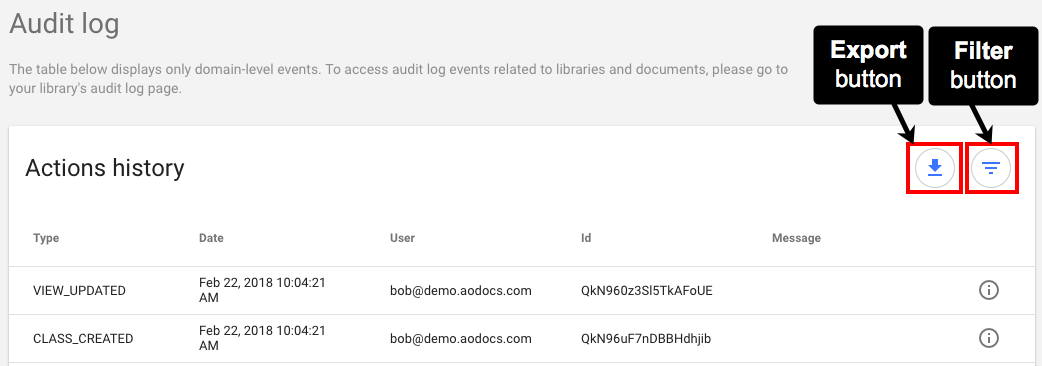
- Type: displays the type of action recorded
- Date: displays the timestamp of the action
- User: displays the email address of the user who performed the action
- Id: displays the ID of the action — it can be a user email, a document ID, a folder ID or a library ID
- Message: provides additional details about the action
- The Info button: summarizes all information about the action in a dialog.
Filter the audit log
You can search and display specific audit logs using different filters such as action type, user who performed the action and timestamp.
Tip: You can also generate a list of logs between two timestamps by using the From and the To filters.
1. To access the filters, click the Filter button.
2. Fill in the required filters.
3. Click Apply filters.
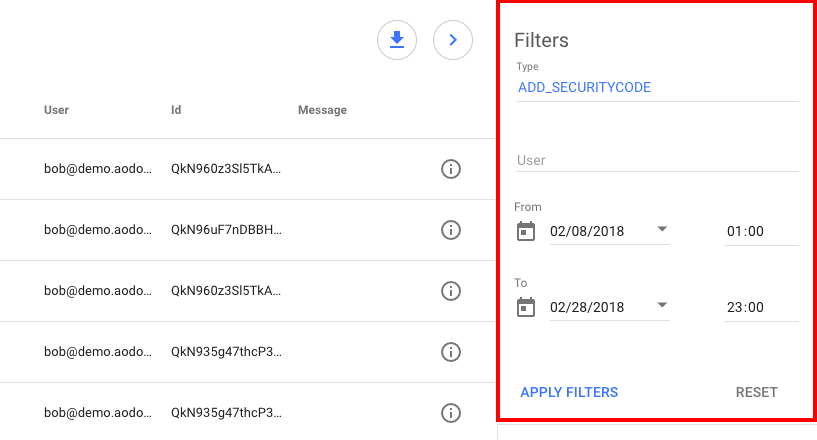
The audit log table displays only the logs corresponding to the selected filters.
Export the audit log
You can export the audit log table.
1. Click the Export button.
2. Select the output format: Spreadsheet or CSV.
3. Click Save.
4. When the export is done, click Close.