
An attached file is a file that is attached to an AODocs document. Attached files can be stored in any of the compatible storage platforms.
Learn more:
There are some minor limitations when working with attached Google files (Google documents, spreadsheets, presentations, drawings and forms). This is the case in all library types.
Automatically generated table of contents
Why do some Google file features have limitations in AODocs?
When you open any type of attached files in AODocs, it is displayed in the AODocs document editor in an iframe, under the AODocs header.
There are some minor limitations when working with attached Google files in the AODocs document editor. If you open your document in a new tab, most of the limitations no longer apply. In addition, you can access many of the limited features directly from the AODocs header.
Limitations with attached Google files
Share a file
The Share button isn't available in the AODocs document editor. To manage sharing permissions, open the More actions menu and select Edit document permissions. Learn more: What are permissions in AODocs?
Delete a file
The Move to trash option in the File menu isn't available in the AODocs document editor. To delete a document from your library, open the More actions menu and select Delete.
Email feature
The options Email as attachment... and Email collaborators... aren't available in the AODocs document editor. To use this feature, open the attached file in a new tab.
Publish to the web
The Publish to the Web option in the File menu isn't available in the AODocs document editor. This is because only the owner of a document can publish to the web in Google Drive.
To publish a document, open the More actions menu and select Publish to the web or Publish to the domain.
Notes:
– The Publish... options are available only in Team Folders and Security Folders. They aren't available in Document Management libraries.
– Only library administrators can access the Publish... options.
Insert or replace images and videos
The Image option in the Insert menu isn't available in the AODocs document editor. To use this feature, open the attached file in a new tab.
Collaborate by mentioning other users (@ + contact)
The feature used to mention other users when editing text in Google documents or spreadsheet cells in Google spreadsheets isn't available in the AODocs document editor. To use this feature, open the attached file in a new tab.
Comments and suggestions in attached Google files
In the AODocs document editor:
- the Delete option isn't available in comments
- the Accept and Reject buttons aren't available in suggestions
To use this feature, open the attached file in a new tab.
Note: The mention feature is available if you add comments.
Gemini in Google Docs
In Google Docs, the Ask Gemini button doesn't appear next to the user's avatar in the AODocs document editor. In addition, the Help me write prompt doesn't work in the AODocs document editor. When you click Help me write, an error message appears.
To use these features, open the attached file in a new tab.
Note: When you open Google spreadsheets and presentations in the AODocs document editor, the Ask Gemini button does appear next to the user's avatar.
Limitations in Google Sheets
Import and Print options:
In Google Sheets, the Import and Print options in the File menu aren't available in the AODocs document editor. To use this feature, open the attached file in a new tab.
Protected cells:
In an AODocs document with an attached Google spreadsheet containing protected cells, only the user who checked out the document can modify the protected cells. Other users with edit permissions can edit the rest of the spreadsheet, but not the protected cells.
Learn more: Force check-out / check-in when editing documents.
Limitations in Google Slides
- HTML view: in Google Slides, the HTML view (accessible via keyboard shortcut) isn't available in the AODocs editor. To use this view, open the attached file in a new tab.
- Present feature: in Google Slides, the Present feature isn't available in the AODocs document editor. To use this feature, open the attached file in a new tab.
Limitations in Google Forms
If your Google Form has an upload button, the form doesn't display correctly in the AODocs document editor.
To use this feature, open the attached file in a new tab.
Features with specific behavior in the AODocs document editor
Create a new file in the AODocs editor
When you select New in the File menu in an attached Google file in the AODocs document editor, a new tab opens with a new Google file. You can name and modify this file.
However, the new file is created in My Drive and isn't managed by AODocs. You can move or import the file into AODocs.
To create a new document in the same AODocs folder, click the New button in the AODocs header.
Make a copy
The Make a copy option in the File menu isn't available in the AODocs document editor.
Instead of using this feature, you can:
- open the attached file in a new tab then select Make a copy in the File menu – this makes a copy of the attached file in My Drive
- open the More actions menu in the AODocs header and select Duplicate – this copies all the attached file and properties of the AODocs document, if any
- Click the New button and make a copy of the current document – this copies all the attached file and properties of the AODocs document, if any
Add-ons and Apps Scripts
Custom user interface elements created by add-ons or Apps Scripts
Custom user interface elements created by add-ons or Apps Scripts are blocked when launched in the AODocs document editor. To use this feature, open the attached file in a new tab.
For example: Google Docs Table of contents add-on
Change of ownership: Google Apps Script
In Google Drive, you can create an Apps Script attached to a Google file, such as a Google document or spreadsheet. When users create and then import these files into AODocs, the following features are unavailable:
- Publish as a web app
- Deploy as an Add-on
These features can be performed only by the script owner: the AODocs storage account.
Tip: We recommend using separate Apps Script files instead of an attached Apps Script.
Google Spreadsheets linked to Google Forms
When working with Google Forms, you have the possibility to select a Google Spreadsheet as the destination for form responses.
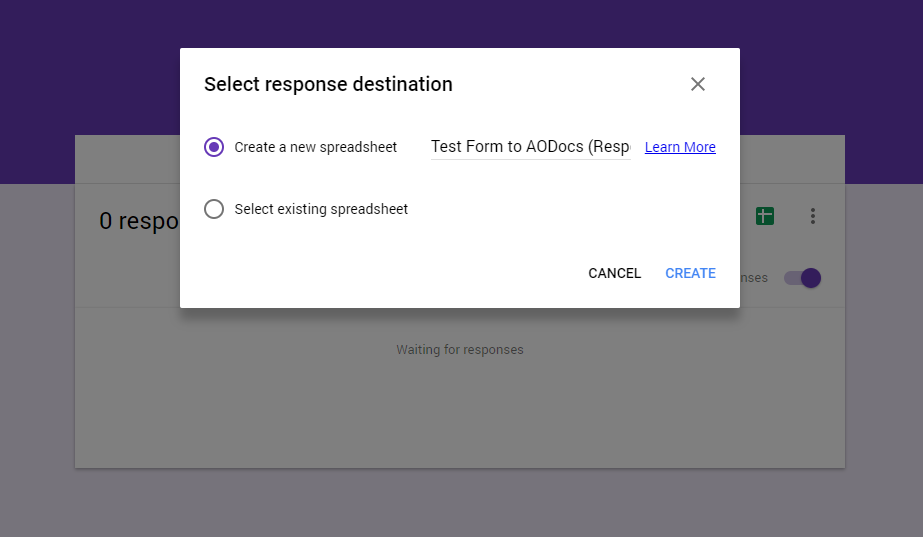
When selected, the spreadsheet and the form are linked (through their unique ID).
Important: If a spreadsheet linked to a form is imported into AODocs, don't use the check-out / check-in feature or restore an older version. Doing so generates a copy of the destination spreadsheet. The copy of the spreadsheet is no longer linked to the form (because it has a different ID). Learn more: Understand the AODocs version control system.