
AODocs can transform an email sent to a specially configured email address into an AODocs document. This article describes the procedure for Team Folders and Secured Folders. Learn more: Create documents from emails in Document Management libraries (in any email client).
To create an AODocs document from an email, an inbound email address must first be configured by a library administrator. Learn more: Configure emails to documents.
When the email address is configured, users who can create documents in the library can send an email to this address. The email is converted into an AODocs document and added to the library. You can use any email client (such as Gmail) or any application (such as a printer or ticketing tools) to send the emails.
Important: You can't send the email using a Google group email address.
Automatically generated table of contents
Create a document from an email
1. Create a new email. In the To field, enter the specially configured email address.
2. Enter a subject and text in the main body.
3. Add at least one attachment.
Note: You must include at least one attachment. If you send an email with no attachments, the AODocs can't create the document. Learn more: Handle attachments.
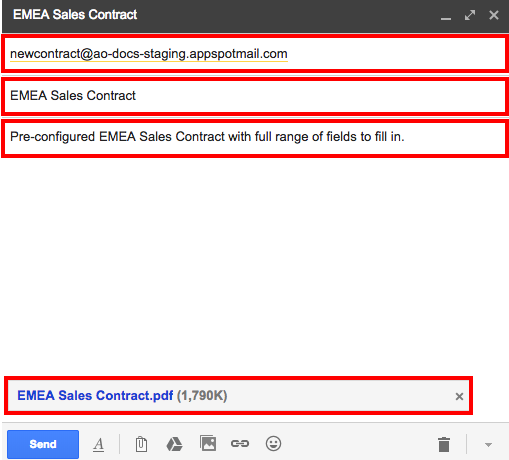
4. AODocs converts the incoming email into an AODocs document as described below:
- The destination address in the email corresponds to an inbound address configured in an AODocs library. AODocs uses this email address to convert the incoming email. The default properties associated with this inbound address will be applied to the converted document.
- The sender's From address becomes the document creator.
- The Subject and the body of the email become the rich text Description of the AODocs document. The HTML formatting in the email body is preserved in the AODocs document unless your administrator chose the plain text setting. Learn more: Configure emails to documents.
- If the email has one attachment, it becomes an attached file in the AODocs document. If the email has more than one attachment, AODocs creates separate documents for each attachment. All attachments are saved to Google Drive.
- The name of the attached file become the title of the AODocs document.
- If a library administrator has associated a document template with the email address, the document created in AODocs will have the default properties of the template.
5. When the conversion is complete, AODocs sends a confirmation email to the sender. The email includes a link to the new document.

6. Open the document in AODocs.
Notes:
- If the document class has a default template and a library administrator hasn't associated the email address with a template, AODocs creates the new document using the default template.
- If a library administrator has associated the email address with a folder, AODocs creates the document in the defined folder. If no folder is associated with the email address, AODocs creates the document at the root level of the library.
- Library administrators can force Microsoft Office files to be converted to Google Docs format.
- The total size of the email sent to AODocs is limited to 24 MB, including the email body and all the attachments.
How AODocs handles email attachments
If you send an email with no attachments, AODocs can't create the document, and you receive an error message.

If you send an email with several attachments, AODocs creates one document for each attachment.
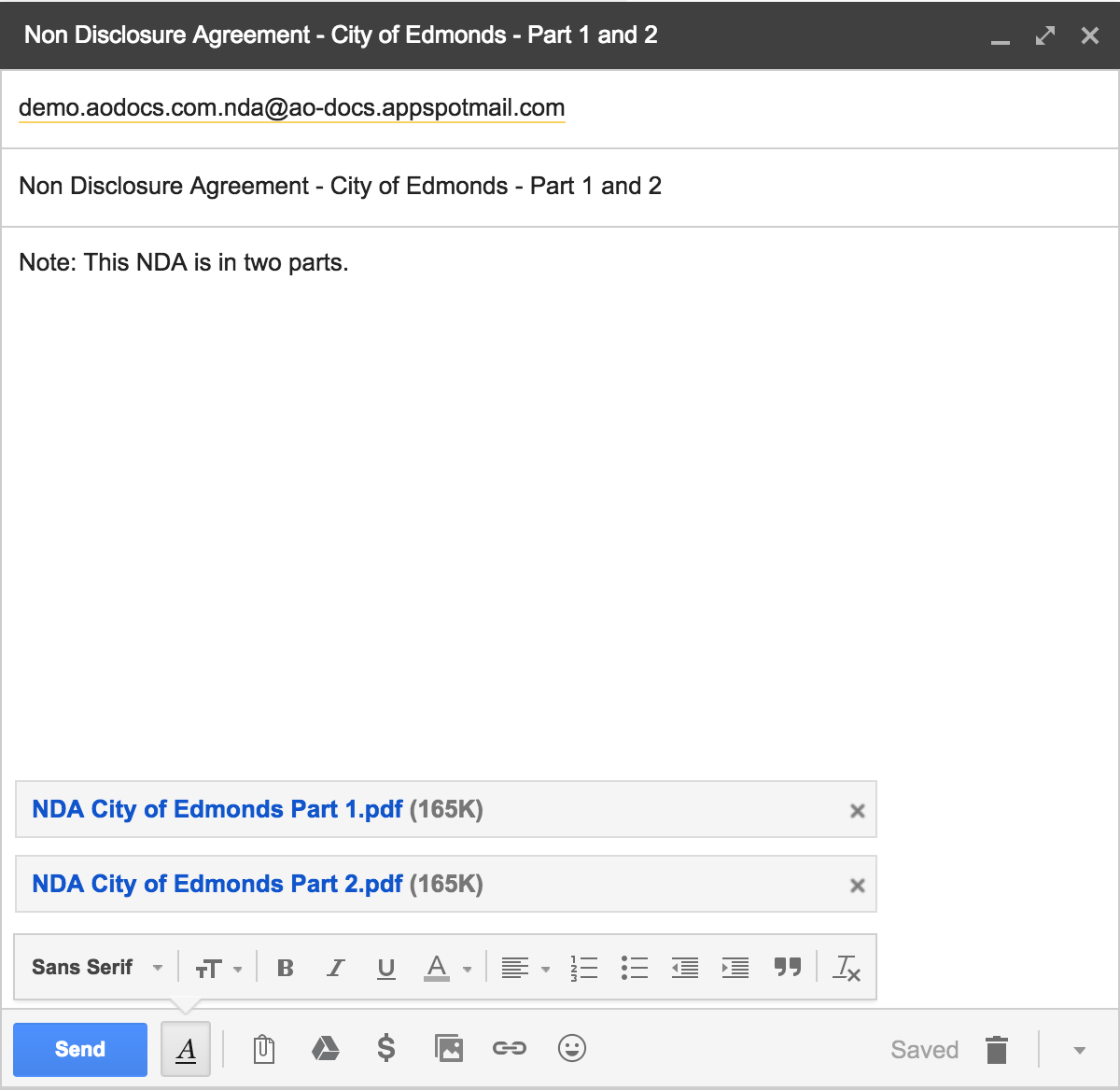 Email with two attachments sent to an AODocs Secured Folder
Note about permissions
AODocs uses the sender's From address to check if they have permission to create documents in the library. If they don't, AODocs sends an email containing an error message to the sender.
